
Connect WhatsApp to Gabster
A quick, secure walkthrough. You'll link your WhatsApp Business number so your agent replies to your customers automatically, and you can keep using the WhatsApp Business app on your phone.
No account yet? Start your free trial
What you'll need
- Your Facebook login (you'll sign in to Meta in a secure popup).
- Your WhatsApp Business number. You can use the one already on your WhatsApp Business app.
- The phone that number is on, for a verification code if Meta asks for one.
- No card needed at Meta: WhatsApp message costs come from the WhatsApp wallet in your Gabster dashboard, where you see your free replies, top up and follow every charge.
- A display name that matches your business, as on your website or shop sign. Meta reviews it and limits sending until it approves it.
Watch: connecting your WhatsApp Business app
Our team's walkthrough of connecting the WhatsApp Business app to Gabster. It's in Arabic; every step is written out below too.
Starting from your Gabster dashboard
Already in the connect window from sign-up? Skip to step 4- On your computer
Sign in to your Gabster dashboard
Open the sign-in page, choose WhatsApp or email, the one you signed up with, and enter the 6-digit code we send you. You'll land in your dashboard.
- On your computer
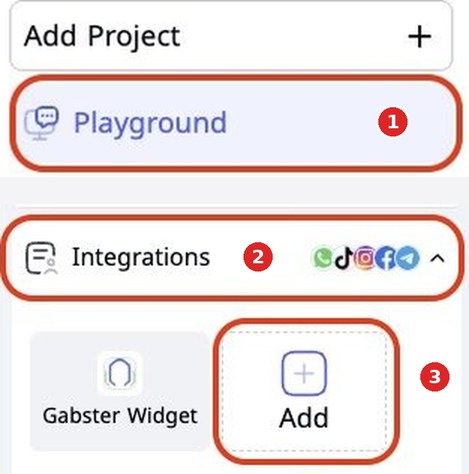
Open the Playground, then tap Add under Integrations
In the navigation menu, open Playground (1). In the side panel, find Integrations (2) and tap Add (3).
- On your computer
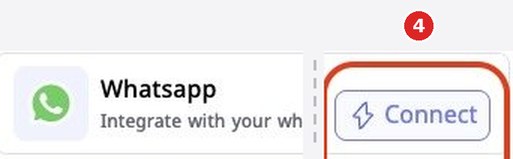
Find WhatsApp and tap Connect
The Integrations window lists the channels you can connect. Tap Connect next to WhatsApp (4): its connect window opens, and the next steps walk you through it.
Then, in the connect window
- On your computer
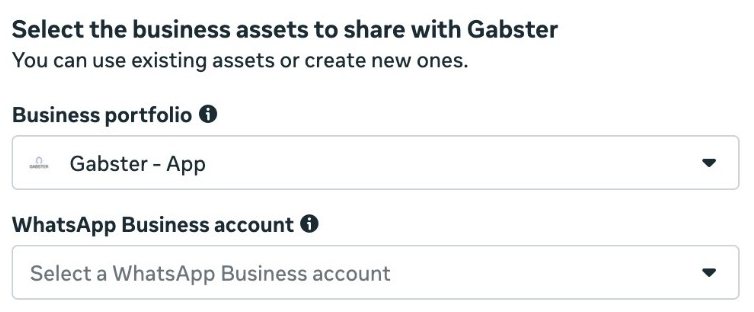
Pick your business portfolio
In the Meta popup, pick your Business portfolio, then open the “WhatsApp Business account” menu. No portfolio yet? Meta lets you create one on the spot.
- On your computer
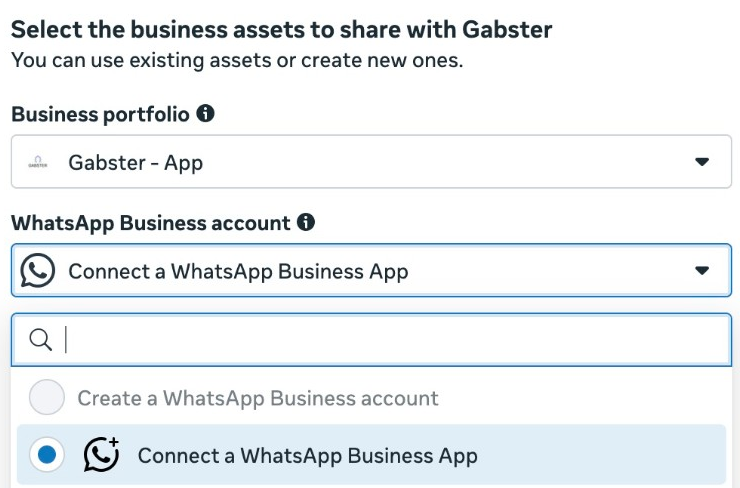
Choose “Connect a WhatsApp Business App”
From the dropdown, select “Connect a WhatsApp Business App” to link the number you already use, or pick an existing account from the list. You can also create a brand-new account if you prefer.
- On your computer
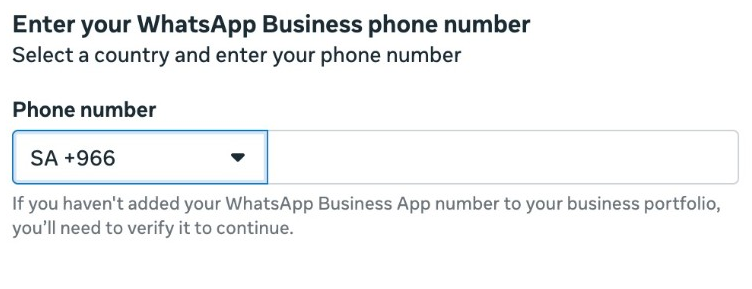
Enter your WhatsApp Business phone number
Pick your country code and type your number. If this number isn't in your business portfolio yet, Meta asks you to verify it with a one-time code.
- On your computer
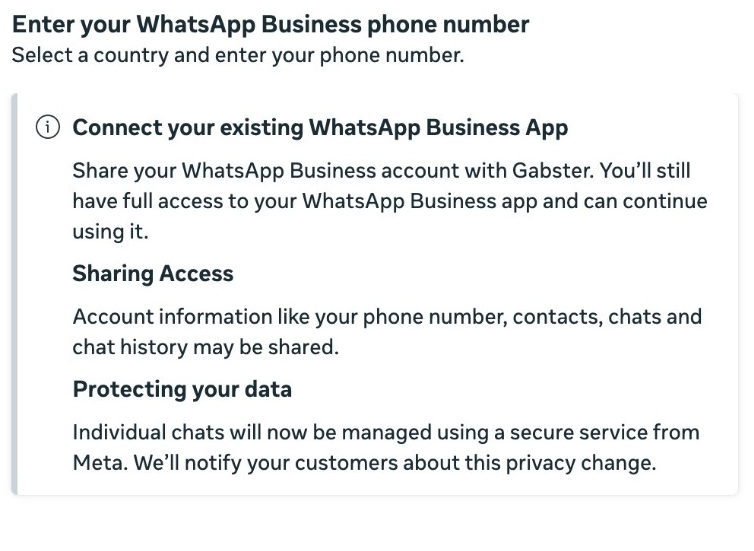
Read what's shared, then continue
Meta explains what happens when you connect a number you already use: you keep full access to your WhatsApp Business app, and chats go through Meta's secure service. Read it and tap Next.
- On your computer
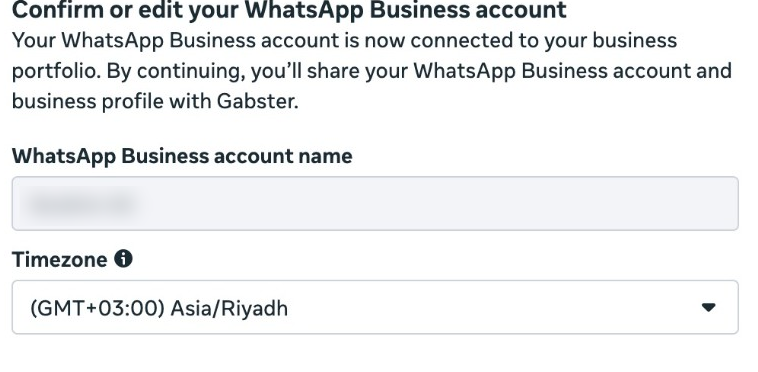
Confirm your account name and timezone
Check the WhatsApp Business account name and set the right timezone for your business, then continue.
- On your computer
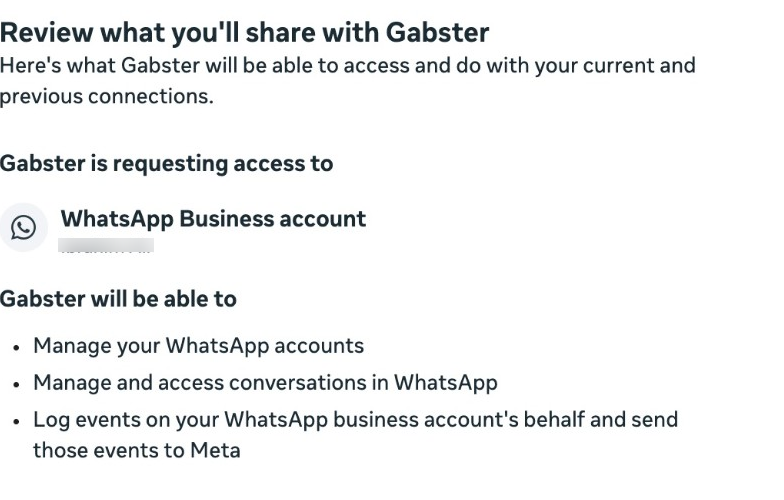
Review what you'll share, then Confirm
Meta lists exactly what Gabster will be able to do: manage your WhatsApp accounts and conversations so your agent can reply for you. Tap Confirm to grant access.
- On your computer
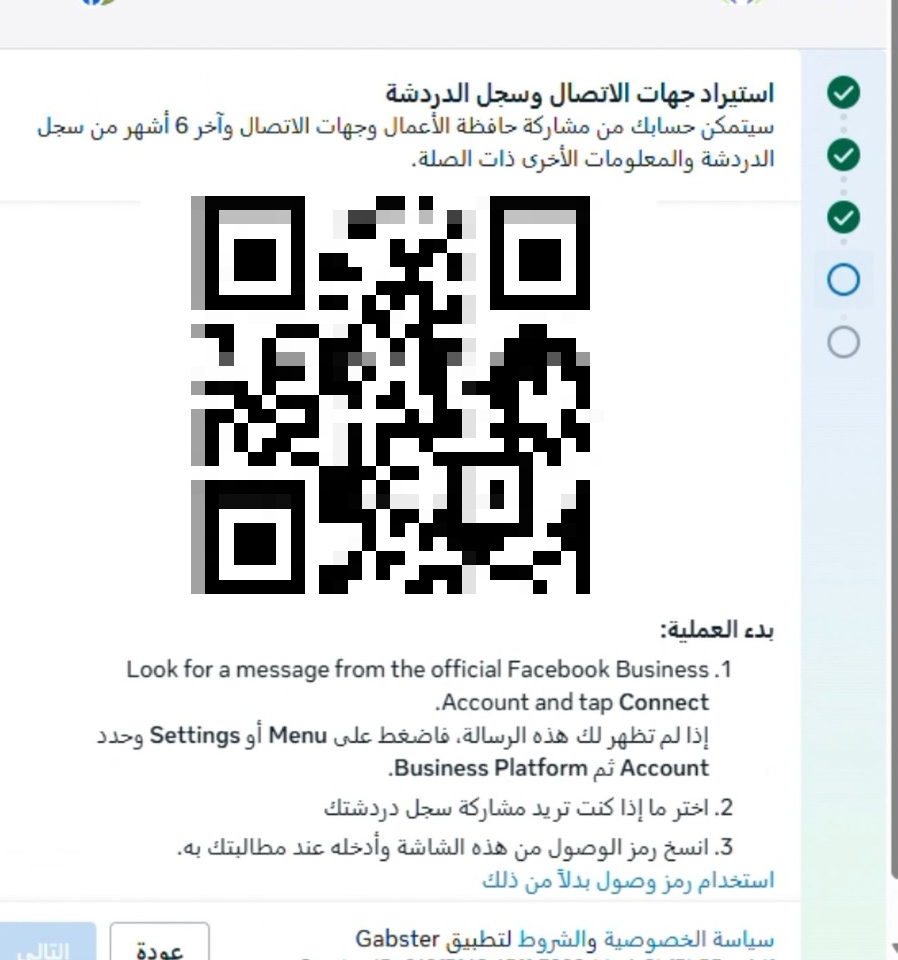
Scan the code, or copy the access code
Meta now shows a code to scan and an access code to bring over your contacts and chat history. Keep this screen open and grab your phone. You need the code shown on your computer screen; scan it from the WhatsApp Business app. Prefer a code? Tap “Use an access code instead” to show one you can type.
- On your phone
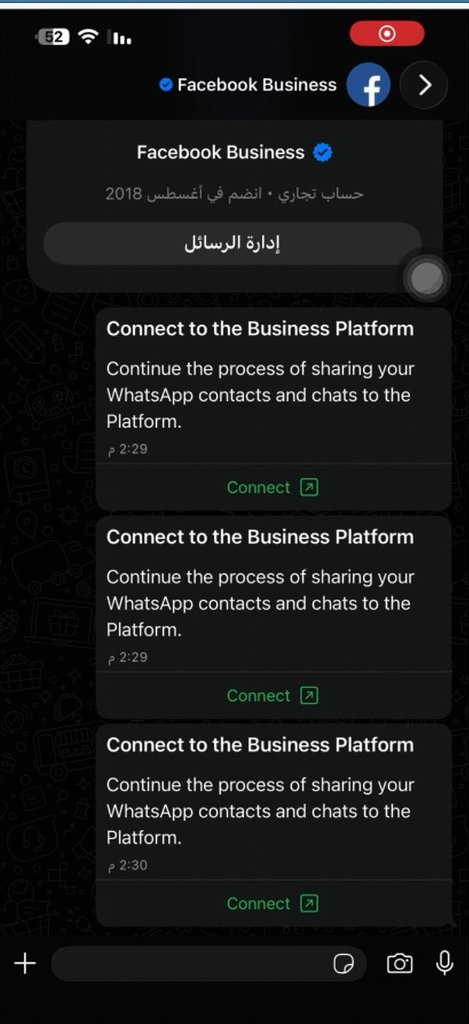
On your phone: open the Facebook Business chat, tap Connect
In your WhatsApp Business app, look for a message from the official Facebook Business account and tap “Connect”. Don't see it? Open SettingsAccountBusiness Platform.
- On your phone
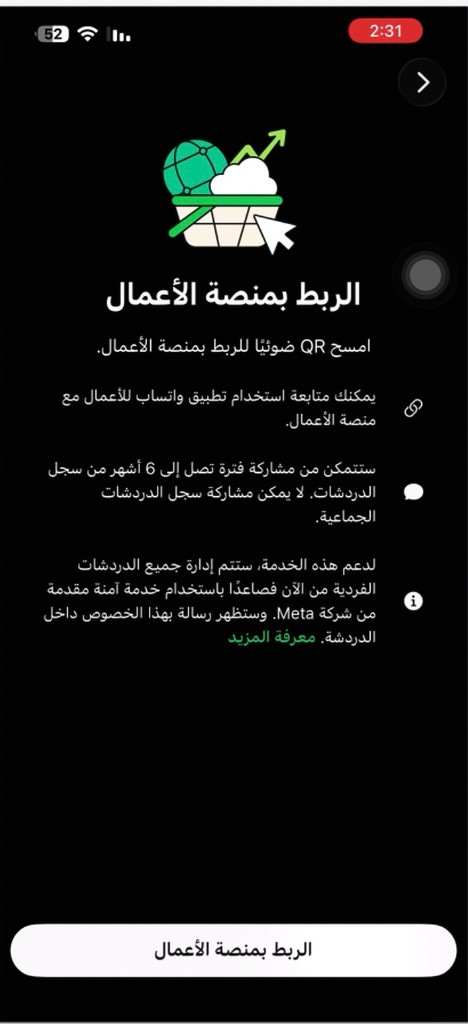
Tap “Connect to the Business Platform”
Your WhatsApp Business app opens the linking screen. Read the note about sharing your chat history, then tap “Connect to the Business Platform”.
- On your phone
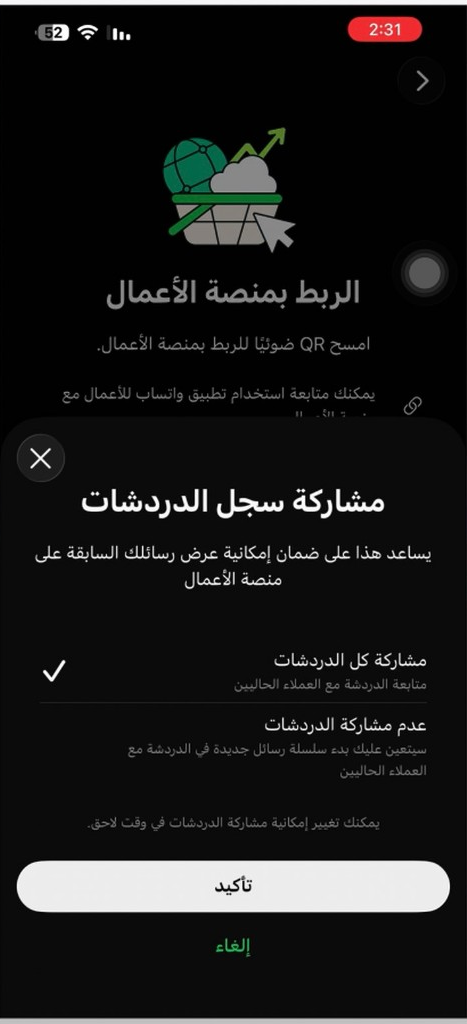
Choose to share your chats, then Confirm
Pick “Share all chats” so your agent can see your earlier conversations with your customers, then tap Confirm. You can change this later.
- On your phone
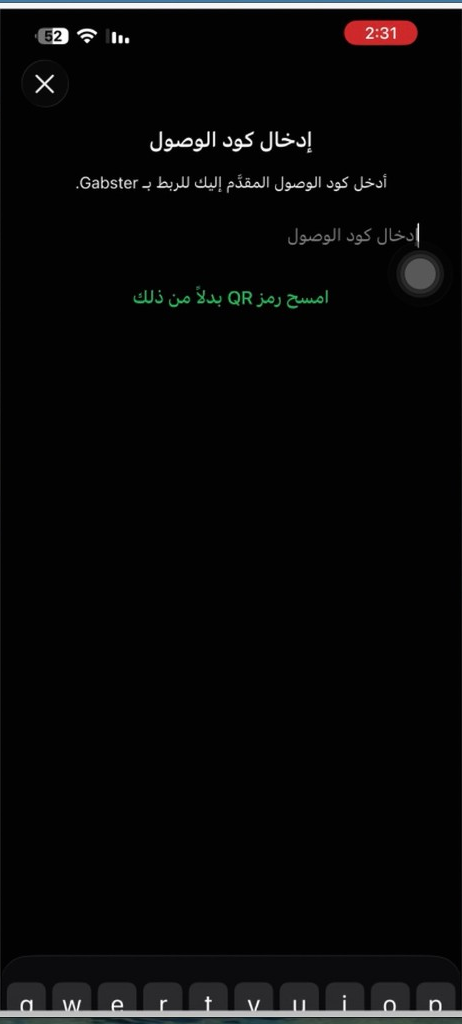
Enter the access code (or scan the code)
Type the access code shown on your computer. Rather scan? You need the code shown on your computer screen; scan it from the WhatsApp Business app.
- On your phone
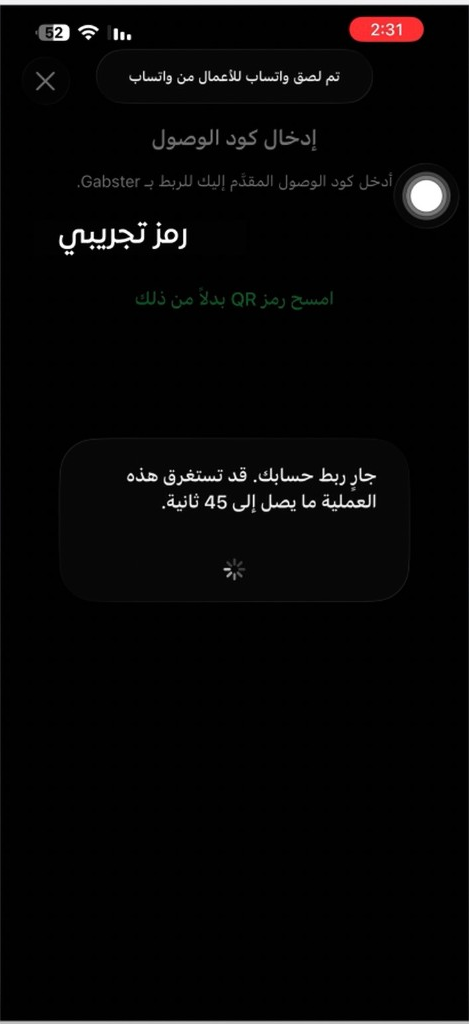
Wait while it links
Your account links to the Business Platform. Nothing to do here. When it's done, go back to your computer.
- On your computer
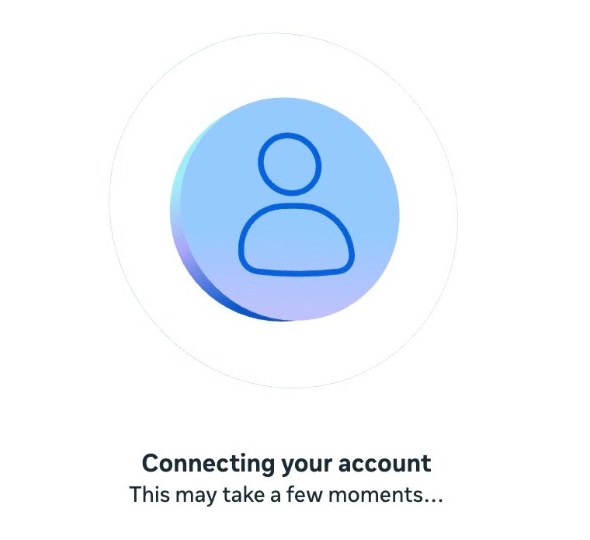
Wait a moment while it connects
Meta finishes the connection. Nothing to do here.
- On your computer
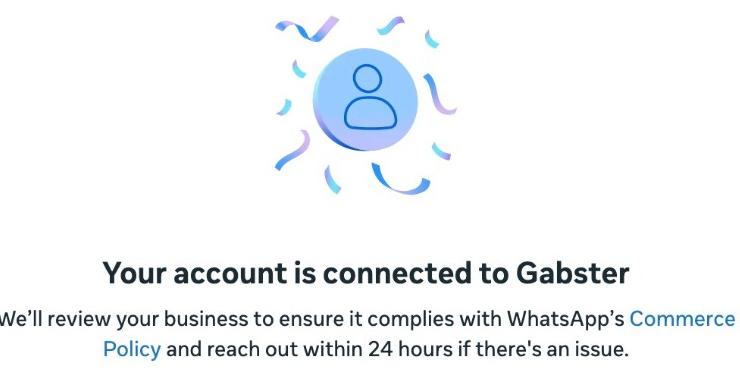
Meta confirms, then tap Finish
You'll see “Your account is connected to Gabster”. Meta may review your business against its policies. Tap Finish to go back to Gabster.
Back in Gabster: WhatsApp is connected
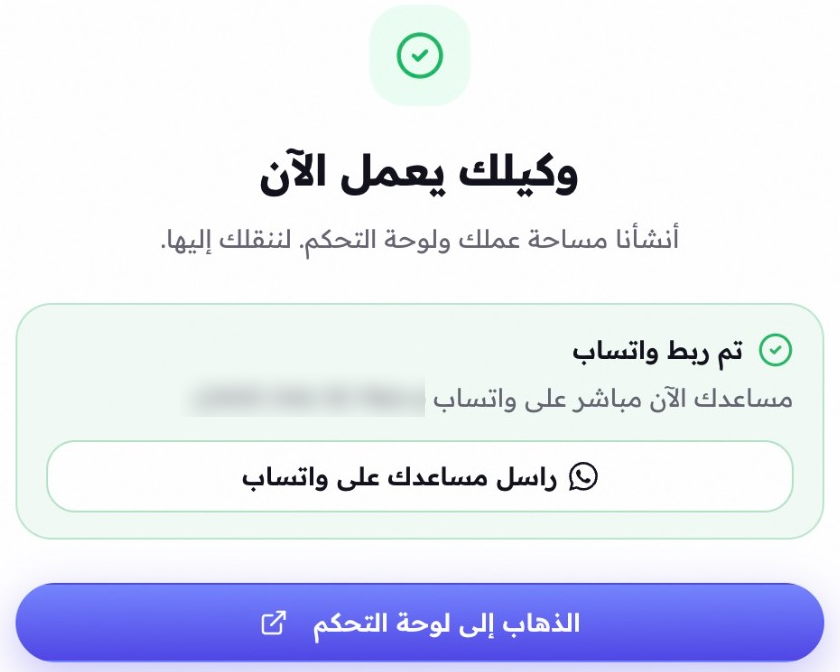
Gabster confirms WhatsApp is connected and shows your number. Once Meta approves the name, send your agent a test message to see it reply, then head to your dashboard.
Your display name, and who pays for messages
Display name: in “WhatsApp Manager”“Phone numbers”, Meta reviews the name your customers see and limits sending until it approves it; if Meta rejects it, change it to your business's real name. Message costs: no card is needed at Meta. They come from the WhatsApp wallet in your Gabster dashboard, where you see the free replies left this month, top up and follow every charge.
Done: WhatsApp is connected to your agent
Once Meta approves the name, message your number from another phone to watch your agent reply. From your dashboard you can review conversations, refine answers and connect other channels, depending on your plan.
Open your dashboardNo account yet? Start your free trial
Next guide: Connect Instagram to GabsterNeed a hand? Talk to our team