
Connect Telegram to Gabster
Watch the short walkthrough, then follow along. You'll create your own Telegram bot with @BotFather and paste its token into Gabster, no app review, no waiting.
No account yet? Start your free trial
What you'll need
- Telegram installed and signed in, on your phone or on desktop.
- A name for your bot, plus a username that no one has taken yet and that ends in “bot”.
- A bot that isn't already connected elsewhere, one bot can serve only one Gabster agent.
- A free channel slot on your plan (each connected channel uses one).
Watch: connecting Telegram, start to finish
The whole flow in one recording. Prefer to read? Every step is written out below.
Starting from your Gabster dashboard
Already in the connect window from sign-up? Skip to step 4- On your computer
Sign in to your Gabster dashboard
Open the sign-in page, choose WhatsApp or email, the one you signed up with, and enter the 6-digit code we send you. You'll land in your dashboard.
- On your computer
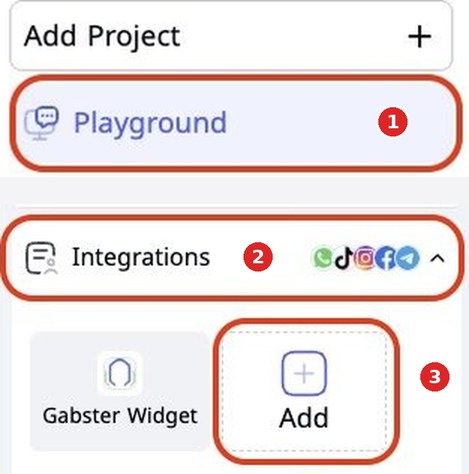
Open the Playground, then tap Add under Integrations
In the navigation menu, open Playground (1). In the side panel, find Integrations (2) and tap Add (3).
- On your computer
Find Telegram and tap Connect
The Integrations window lists the channels you can connect. Tap Connect next to Telegram (4): its connect window opens, and the next steps walk you through it.
Then, in the connect window
- On your phone
Open @BotFather in Telegram
BotFather is Telegram's own bot for creating bots. Search for “@BotFather” in Telegram, or tap the link in the Gabster connect panel, then press Start.
- On your phone
Send /newbot and name your bot
Send the command /newbot. BotFather asks for a display name your customers will see (for example your store's name), then for a username. The username must be unique and end in “bot”, like yourstore_bot.
- On your phone
Copy the bot token
BotFather replies with a token that looks like 123456789:AAExample…. Tap it to copy the whole thing. Copy it exactly, including the digits before the colon.
- On your computer
Back in Gabster: paste the token
In the “Connect Telegram” panel, paste the token into the Bot token field. Gabster checks its shape as you go, so an accidentally clipped token is caught before anything is sent.
- On your computer
Tap “Connect Telegram”
Gabster registers your bot and switches on message delivery, so every message sent to your bot reaches your agent from that moment on. It ends with a green “Telegram connected” confirmation.
- On your phone
Send your bot a message to test it
Open your new bot in Telegram, t.me/your_bot_username, then press Start and ask it something a customer would ask. Your agent should answer.
Done: Telegram is connected to your agent
Share your bot's t.me link wherever your customers are, then review the conversations from your dashboard and refine the answers as you go.
Open your dashboardNo account yet? Start your free trial
Next guide: Connect your Facebook Page to GabsterNeed a hand? Talk to our team