
Connect Instagram to Gabster
A quick, secure walkthrough. You'll link your Instagram Professional account so your agent replies to Direct messages automatically, and you keep full access to your account.
No account yet? Start your free trial
What you'll need
- Your Facebook login (you'll sign in to Meta in a secure popup).
- An Instagram Professional or Business account. A personal account won't work.
- That Instagram account linked to a Facebook Page you manage.
- In the Instagram app: SettingsMessages and story repliesMessage controlsConnected toolsturn on “Allow access to messages”. Without it, Instagram never passes your messages to your agent.
Watch: connecting Instagram
Our team's walkthrough. It's in Arabic; every step is written out below too.
Starting from your Gabster dashboard
Already in the connect window from sign-up? Skip to step 4- On your computer
Sign in to your Gabster dashboard
Open the sign-in page, choose WhatsApp or email, the one you signed up with, and enter the 6-digit code we send you. You'll land in your dashboard.
- On your computer
Open the Playground, then tap Add under Integrations
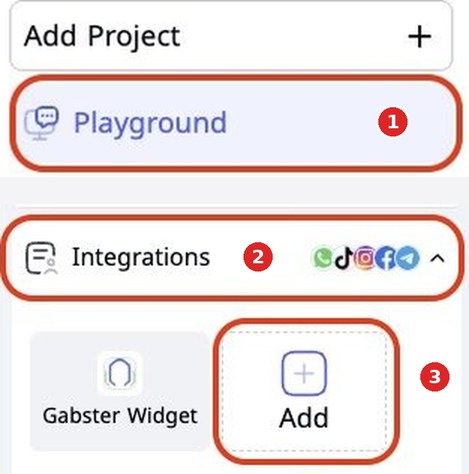
In the navigation menu, open Playground (1). In the side panel, find Integrations (2) and tap Add (3).
- On your computer
Find Instagram and tap Connect
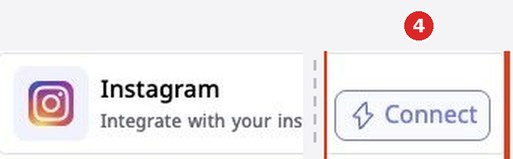
The Integrations window lists the channels you can connect. Tap Connect next to Instagram (4): its connect window opens, and the next steps walk you through it.
Then, in the connect window
- On your computer
Confirm the link window, then tap Connect
A small window to link Instagram to your agent appears, with a secure Meta link. Tap Connect to open Meta's login and permissions popup.
- On your computer
Choose the Facebook Page, then Continue
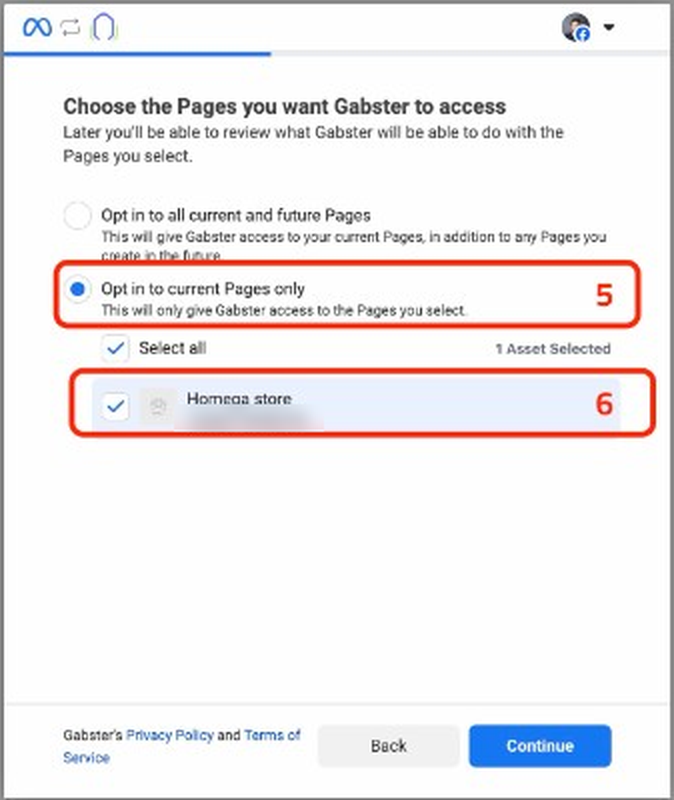
In the Meta popup, on “Choose the Pages you want Gabster to access”, pick “Opt in to current Pages only”, tick the Page your Instagram is linked to, then tap Continue.
- On your computer
Choose the Business, then Continue
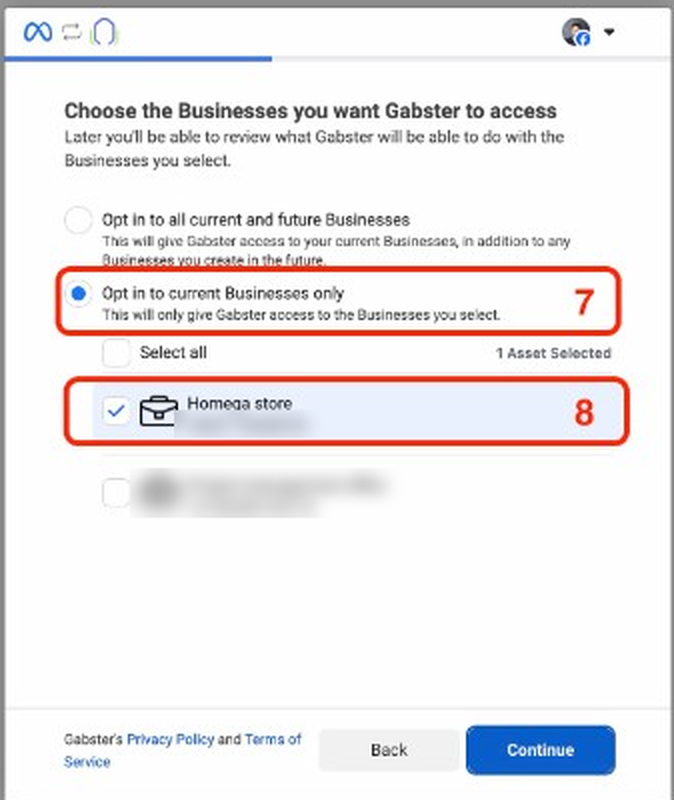
On “Choose the Businesses you want Gabster to access”, pick “Opt in to current Businesses only”, tick your business, then tap Continue.
- On your computer
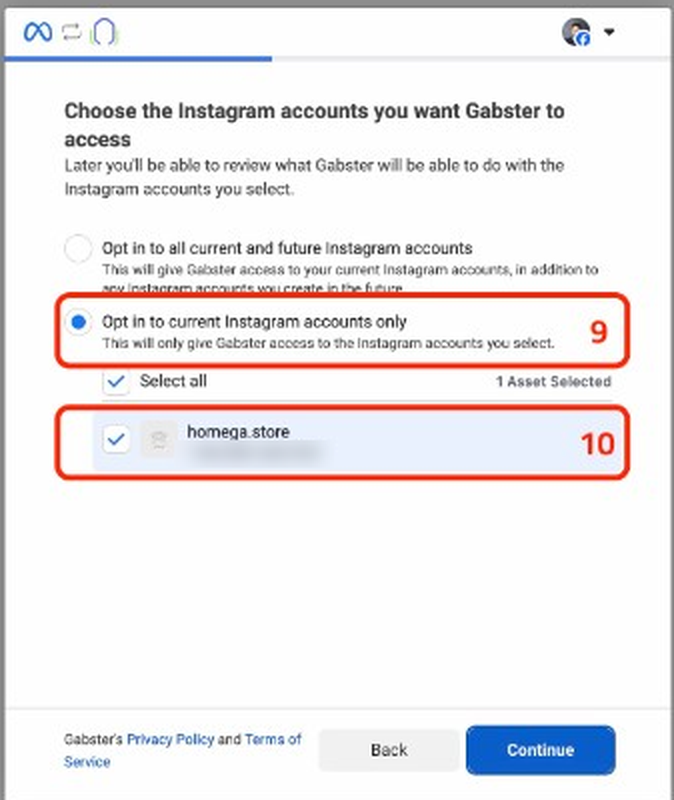
Choose the Instagram account, then Continue
On “Choose the Instagram accounts you want Gabster to access”, pick “Opt in to current Instagram accounts only”, tick your account, then tap Continue.
- On your computer
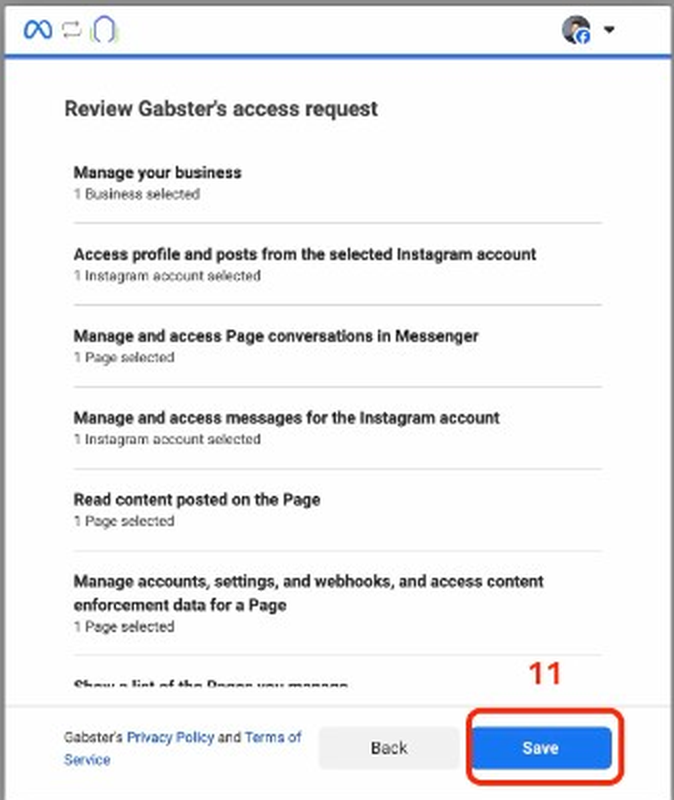
Review what you'll share, then Save
Meta shows “Review Gabster's access request”: the full list of what Gabster will be able to do, like reading and replying to your Instagram messages. Read it, then tap Save.
- On your computer
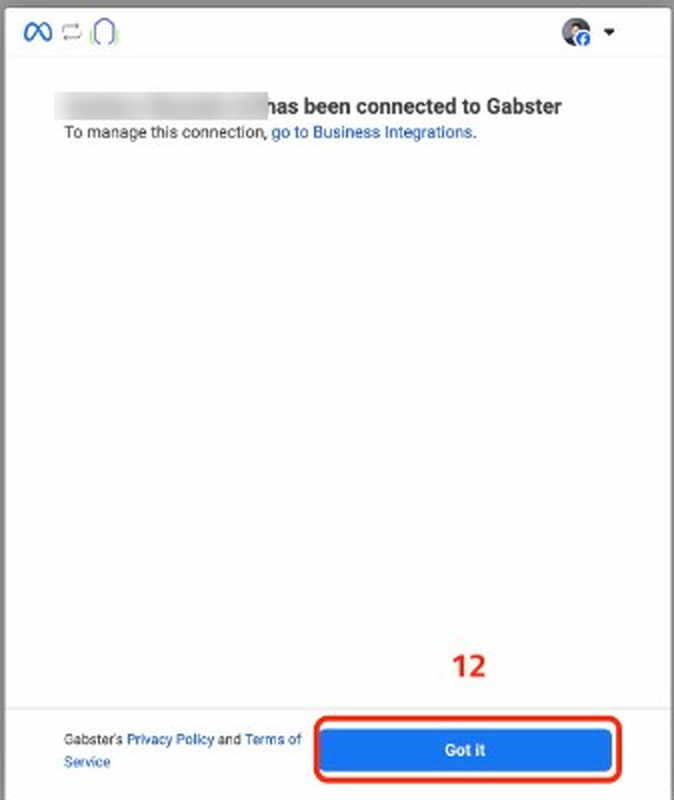
Meta confirms, then tap Got it
You'll see “… has been connected to Gabster”. The connection is now set up on Meta's side. Tap Got it to go back to Gabster.
- On your computer
Back in Gabster: Instagram is connected
Gabster confirms Instagram is connected with a green check. Tap “Return to integrations” to finish, then send your account a Direct message to watch your agent reply.
Done: Instagram is connected to your agent
Message your account from another profile to watch your agent reply. From your dashboard you can review conversations, refine answers and connect other channels, depending on your plan.
Open your dashboardNo account yet? Start your free trial
Next guide: Connect Telegram to GabsterNeed a hand? Talk to our team